

← All how-to videosMore on this topic
Handle a double booking from Airbnb or Booking
The double-booking alert, the OTA-conflict filter, moving the guest to a free room at the same price, and keeping a room back from the OTAs at weekends.
Narrated in Vietnamese, with Vietnamese captions.
About OTA calendar sync →In this video
- Airbnb sold a night you already have a guest for? The bell at the top tells you as soon as its calendar is pulled in.
- Click the notification: the bookings list opens filtered to OTA conflicts, and the double-booked stay has a red label.
- Open the booking: the warning card says which night clashes, and with which calendar.
- Below it are the rooms still free. Moving to another room category keeps the old price; tick this box to reprice at the new category's rate.
- Click Move to on a suitable room: the guest is moved, and the conflict label is gone.
- To avoid the next one, keep rooms back from the OTAs: open the property, and click Edit on the room category.
- Under Rooms kept back from OTAs, enter one room and choose Fridays, Saturdays and holidays only.
- Click Save. When only one room is left, the calendar sent to Airbnb and Booking shows it sold out; your own site and the desk still sell it.
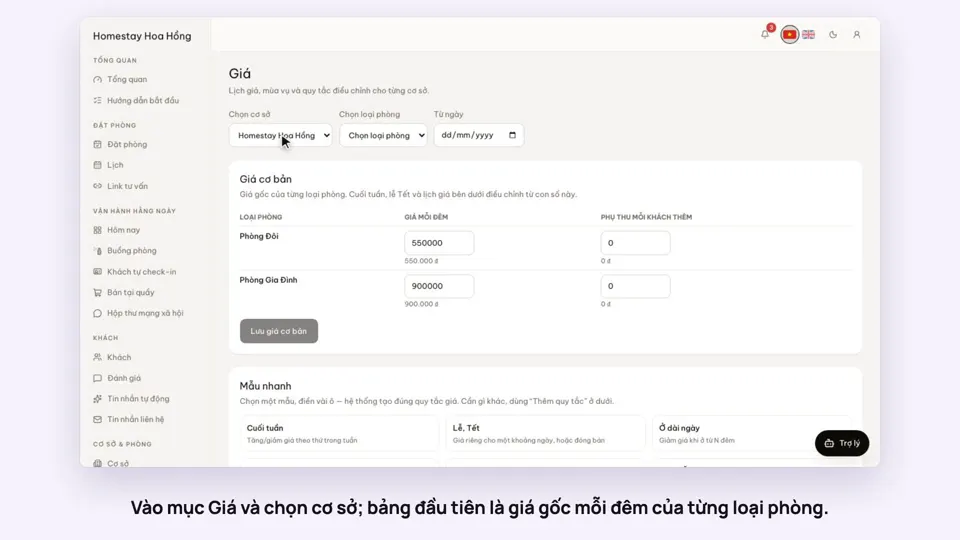 0:37Set weekend and holiday pricesGetting startedBookings
 0:50Make rate plans: breakfast included, non-refundableSelling
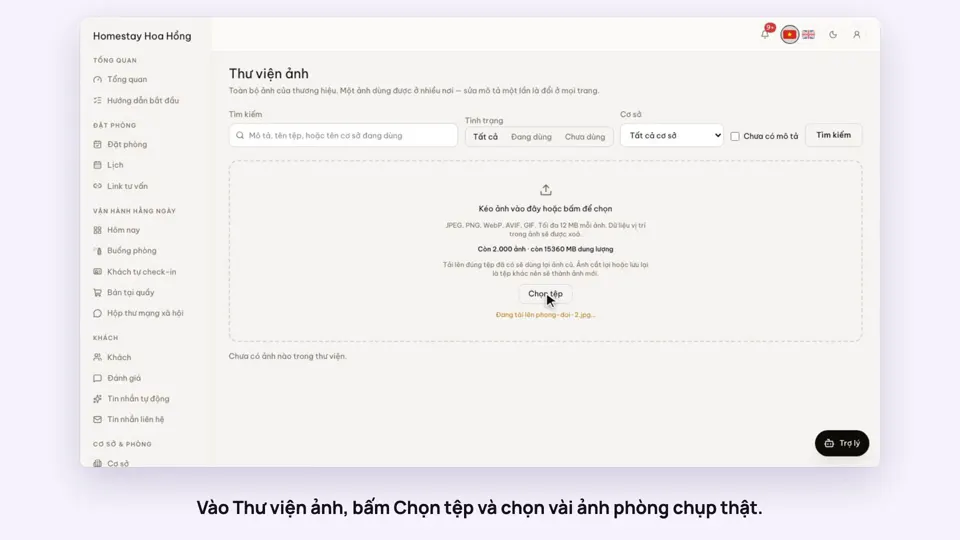 0:34Upload photos and describe your roomsGetting startedSelling
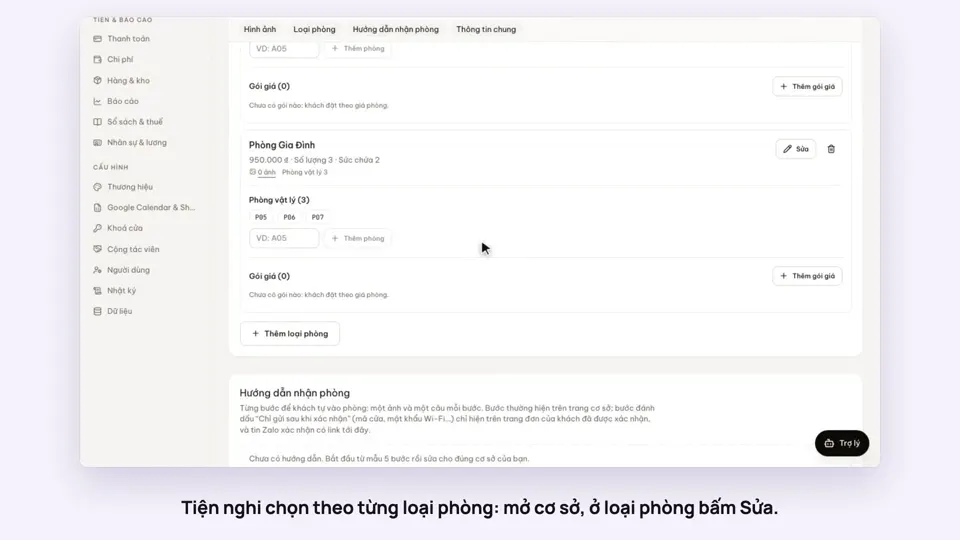 0:30Pick amenities for each room typeGetting startedSelling
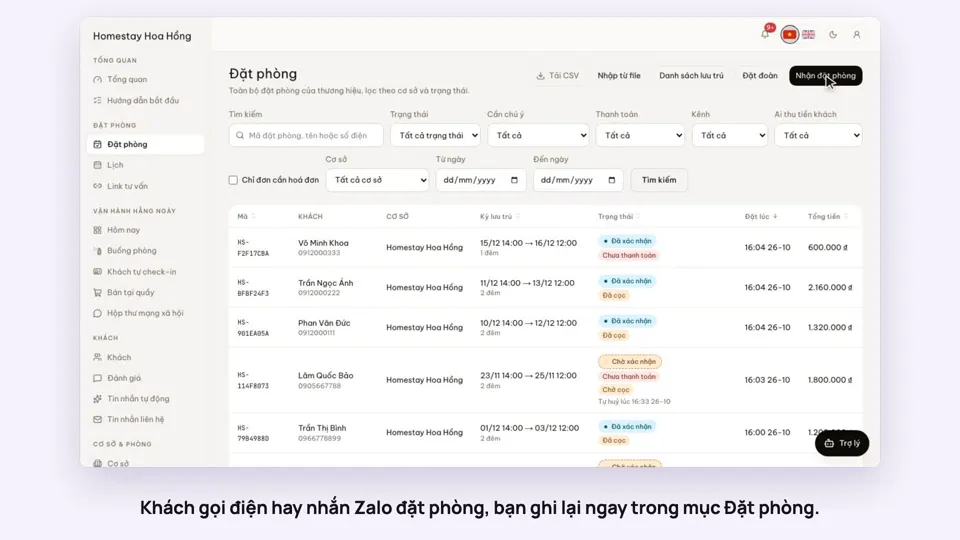 0:41Take a booking from a phone call or a Zalo messageBookings
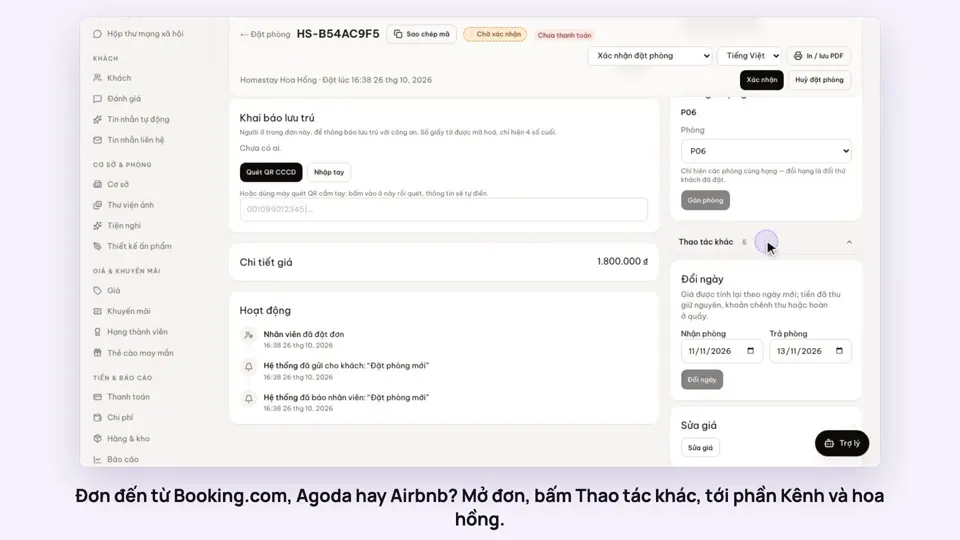 0:42Record the OTA, its booking code and commissionBookings