

← All how-to videosMore on this topic
Cancel a booking and refund the deposit
Cancel a booking with a reason, then record the deposit refund to the guest right on the booking.
Narrated in Vietnamese, with Vietnamese captions.
In this video
- A guest tells you they are cancelling? Open their booking; the Payments section shows how much deposit they have transferred.
- Click Cancel booking and enter a reason; the reason is saved in the booking’s log.
- Confirm the cancellation, and the room goes back on the calendar for other guests to book.
- Once you have transferred the deposit back to the guest, click Refund on the payment you received.
- Enter the refund amount and a reason, then click Confirm refund.
- The booking shows the amount refunded, and it also appears under Payments so you can reconcile it.
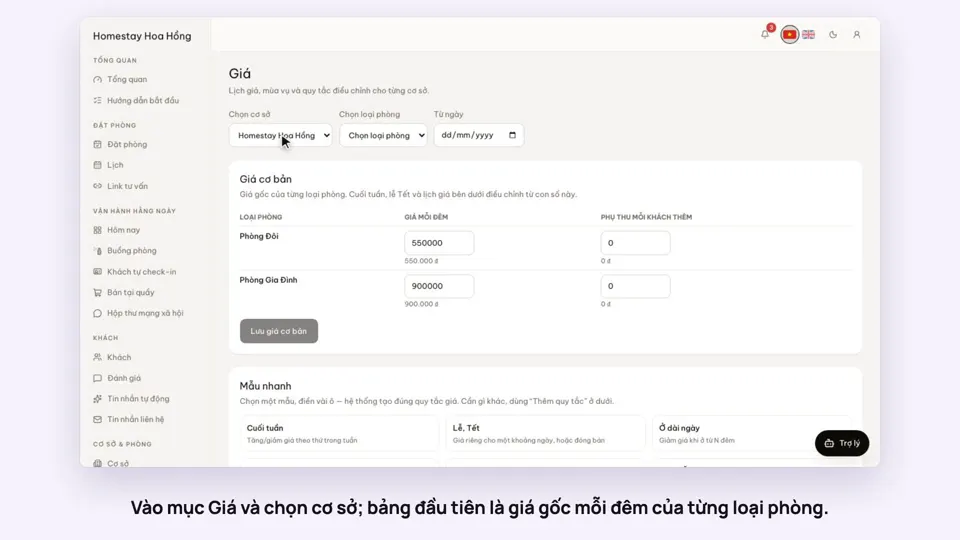 0:37Set weekend and holiday pricesGetting startedBookings
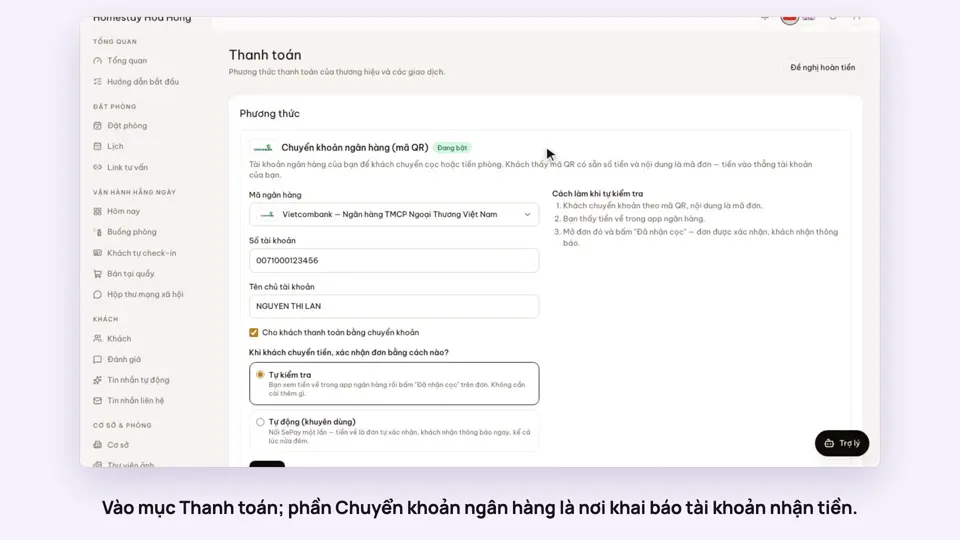 0:30Add your bank account to take payments by QRGetting startedMoney
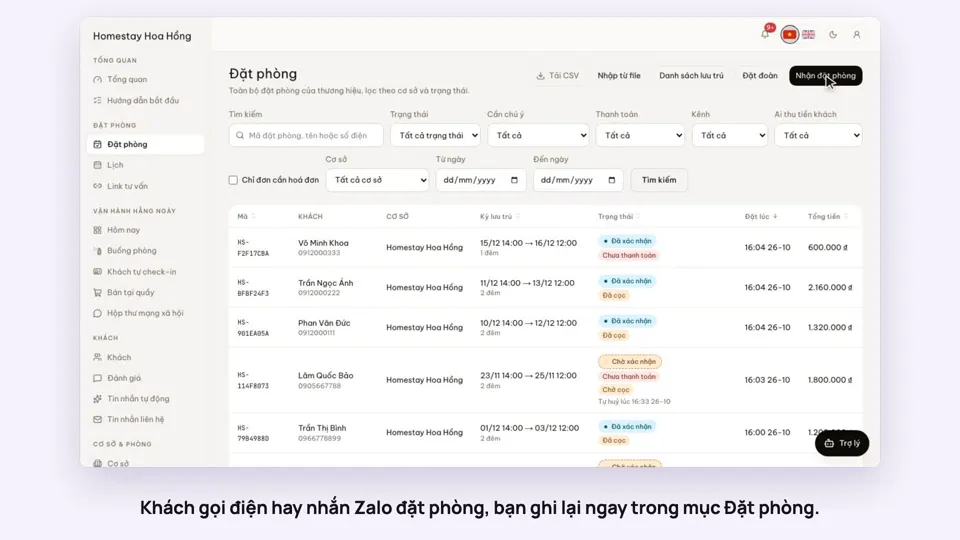 0:41Take a booking from a phone call or a Zalo messageBookings
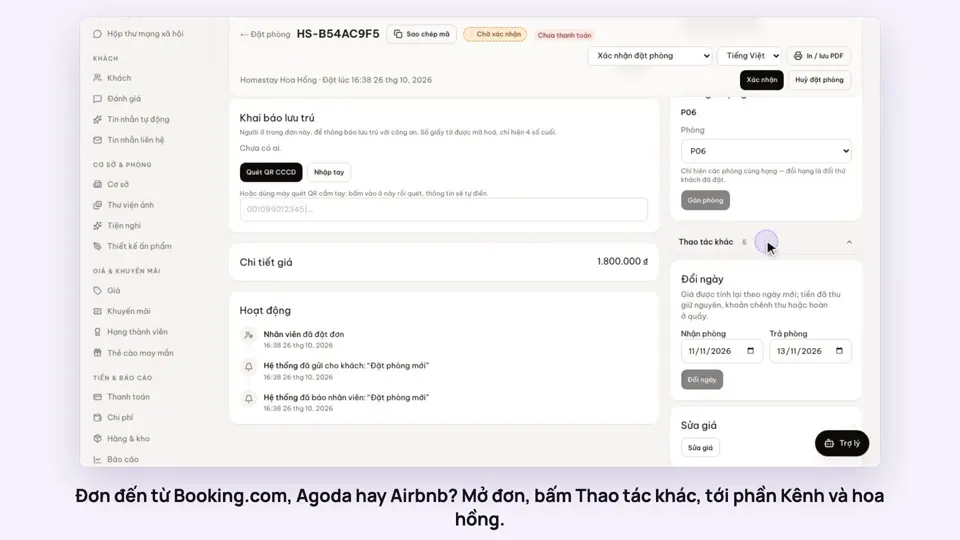 0:42Record the OTA, its booking code and commissionBookings
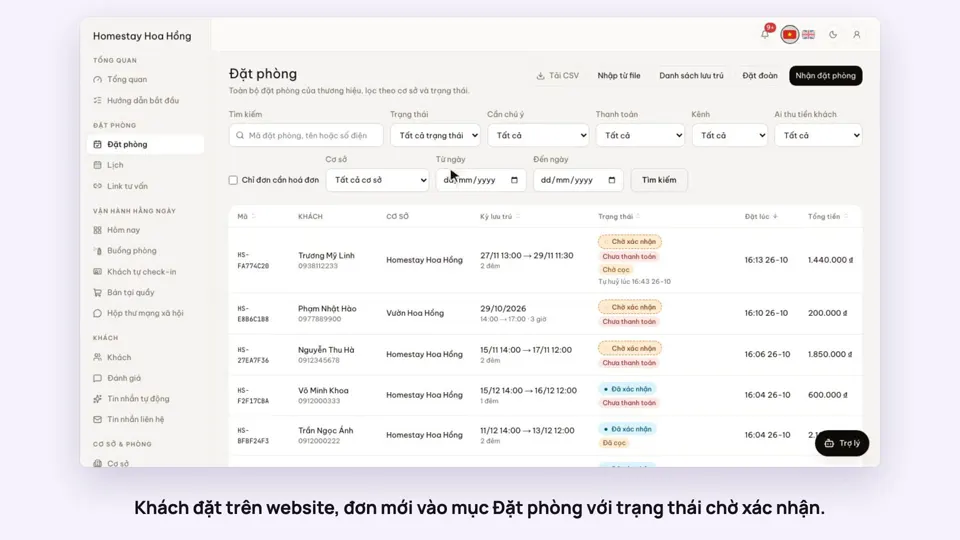 0:30Confirm a booking made onlineBookings
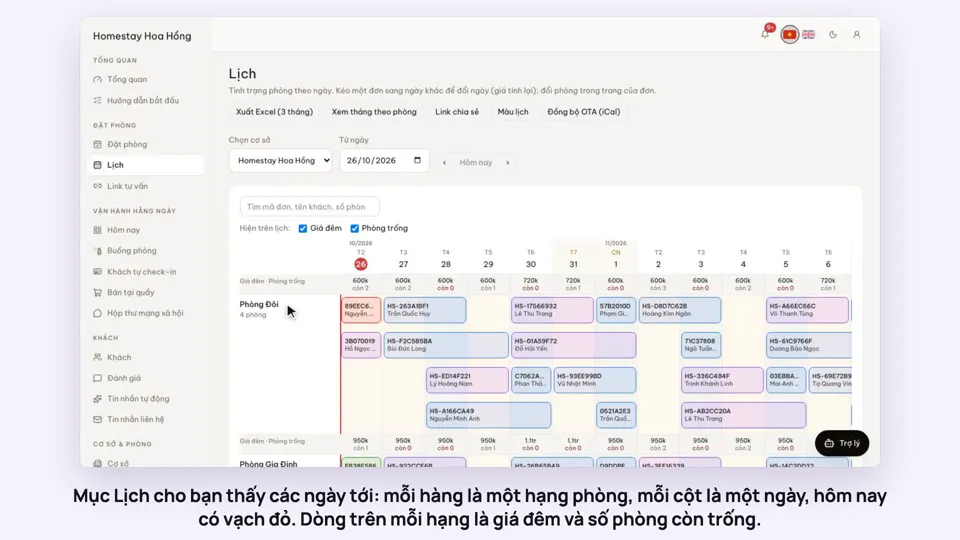 0:54Read the room calendar by day, week and rangeBookings