

← All how-to videosMore on this topic
Import your bookings from Excel
Pick your existing Excel or CSV file (name, phone, check-in and check-out columns are enough), preview each row, then import them onto the calendar at once.
Narrated in Vietnamese, with Vietnamese captions.
About Import from files →In this video
- Do you keep your bookings in Excel? In Bookings, click Import from file.
- You do not need a template file: you only need the columns Full name, phone number, check-in date and check-out date, plus room type and deposit if you have them.
- Choose the file saved from Excel or Google Sheets, then click Preview.
- Each row is shown so you can check it: which rows will be imported, which are skipped and why.
- Click Import once: the bookings are created, confirmed and hold the room on the calendar.
- If you imported the wrong file, click Undo this import, and every booking just imported is cancelled.
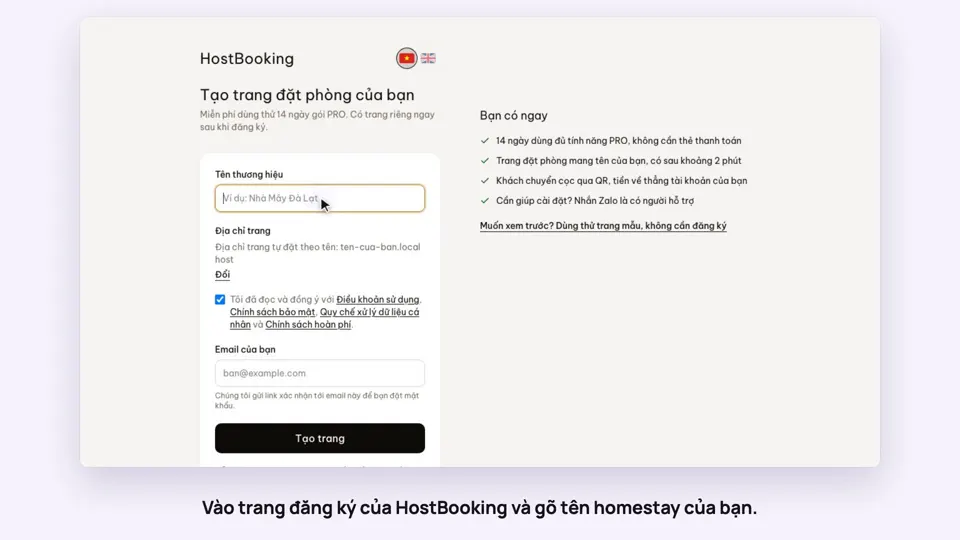 0:33Sign up and make your booking site in two minutesGetting started
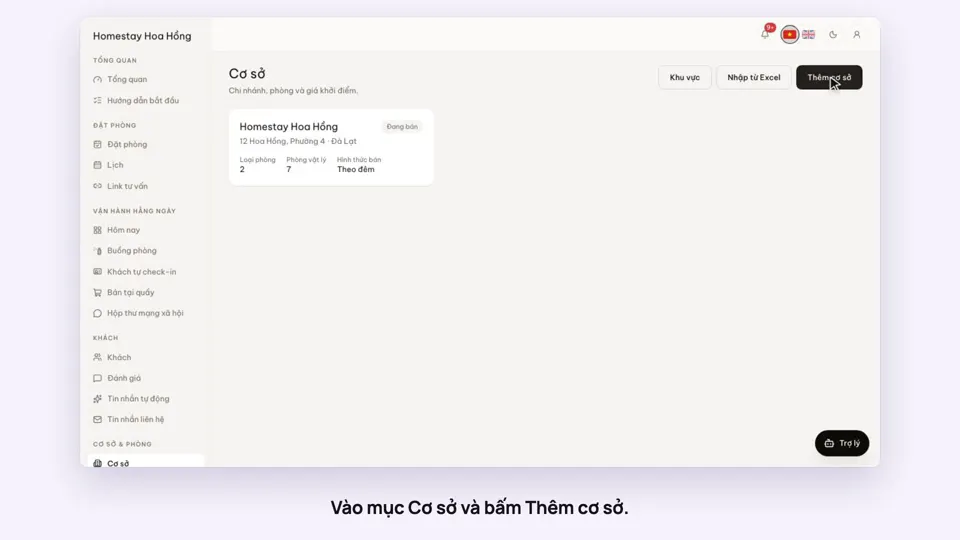 0:39Add a place, its room types and roomsGetting started
 0:41Sell a dorm by the bedGetting started
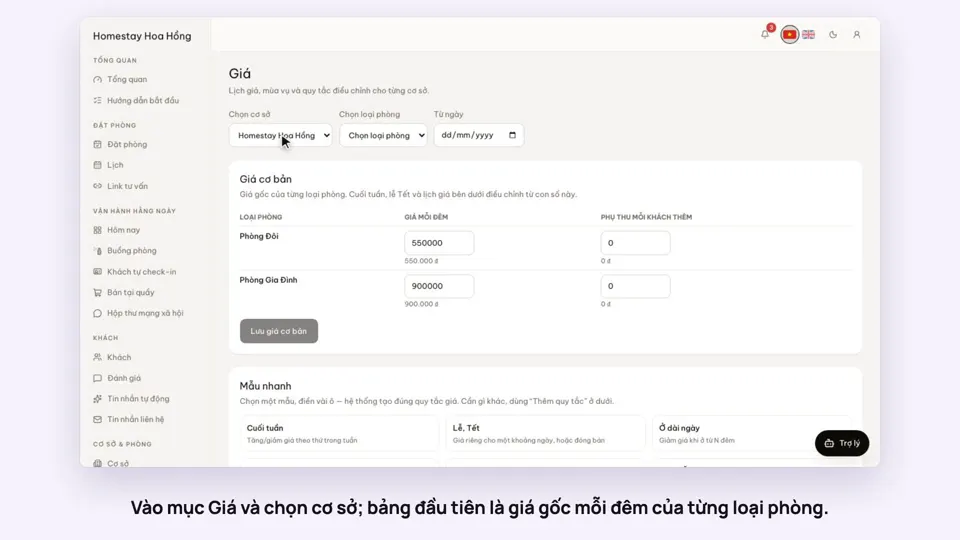 0:37Set weekend and holiday pricesGetting startedBookings
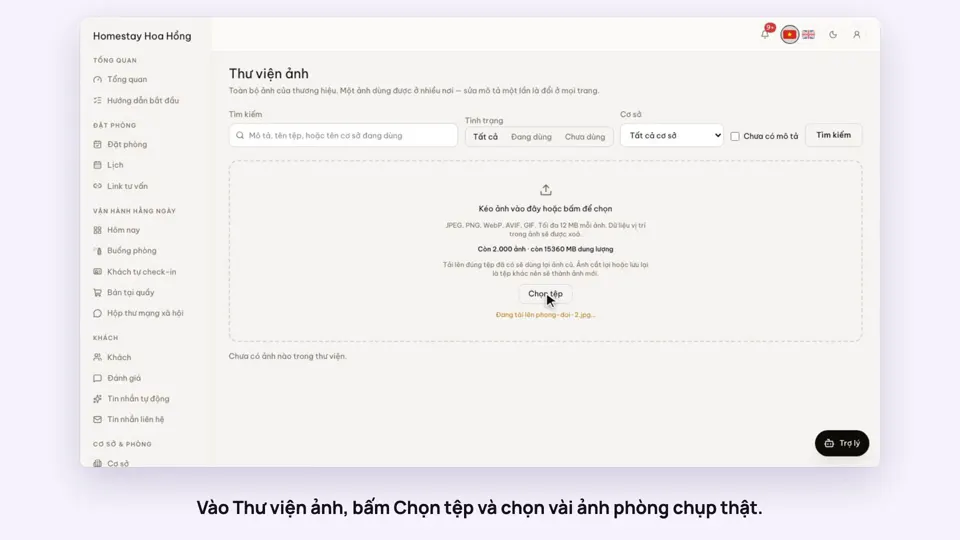 0:34Upload photos and describe your roomsGetting startedSelling
 0:30Pick amenities for each room typeGetting startedSelling