

← All how-to videosMore on this topic
Choose a theme and colours for your site
Try each theme, change the main colour and preview the site before applying it.
Narrated in Vietnamese, with Vietnamese captions.
In this video
- Go to Brand, then Appearance: there are several themes, and you click one to preview it.
- Feel free to try other themes; your guests’ website does not change until you apply one.
- Preview the phone size too, because most guests book on their phones.
- When you like a theme, click Apply.
- To change the main colour, open Semantic colours and edit the Primary button colour.
- Click Save, and your website uses the new colour straight away.
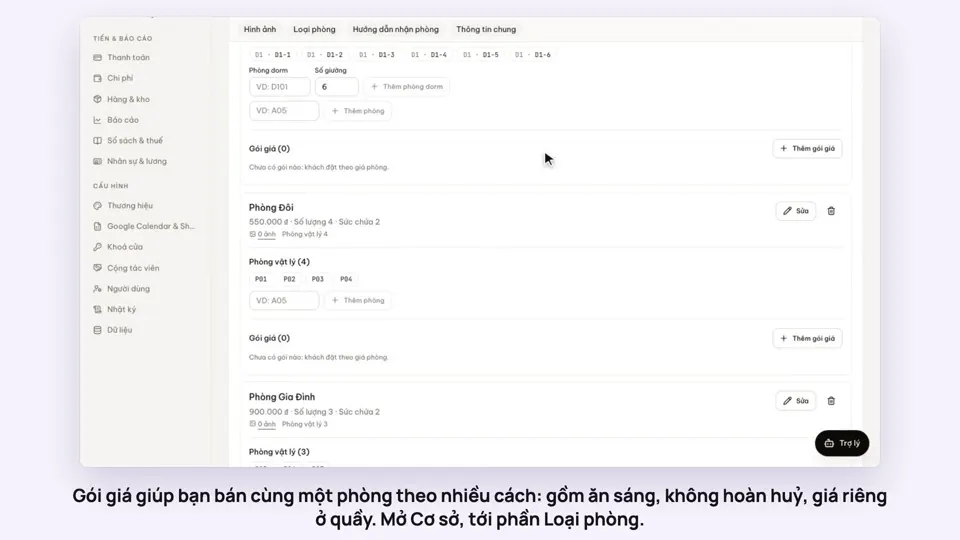 0:50Make rate plans: breakfast included, non-refundableSelling
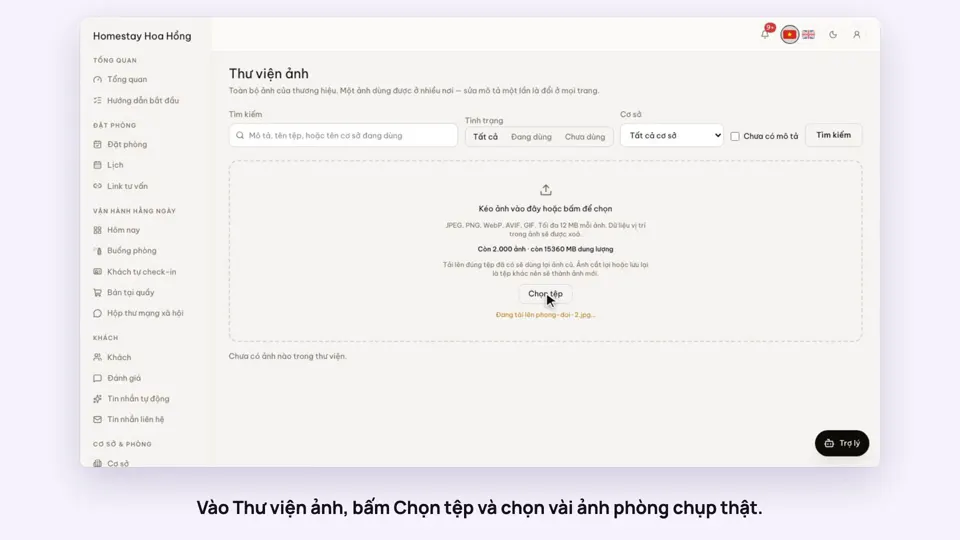 0:34Upload photos and describe your roomsGetting startedSelling
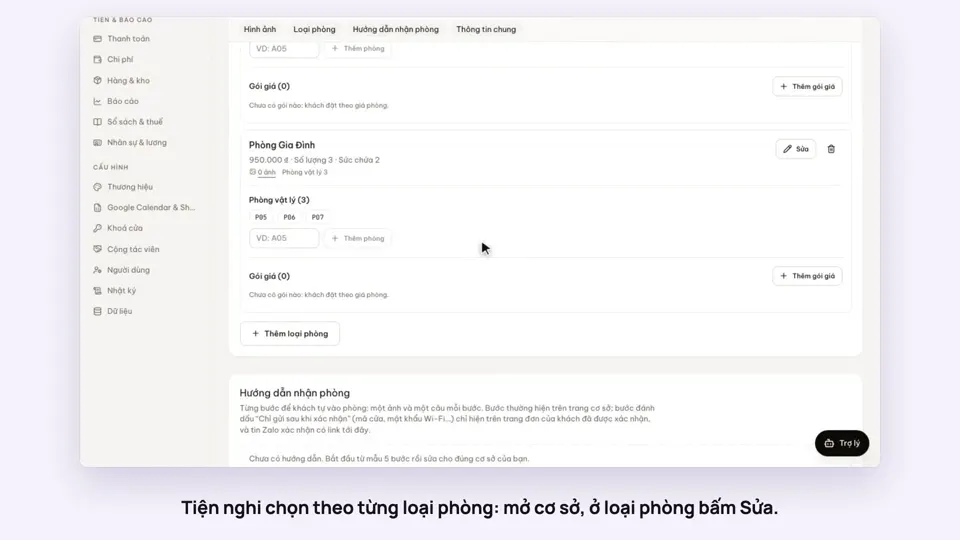 0:30Pick amenities for each room typeGetting startedSelling
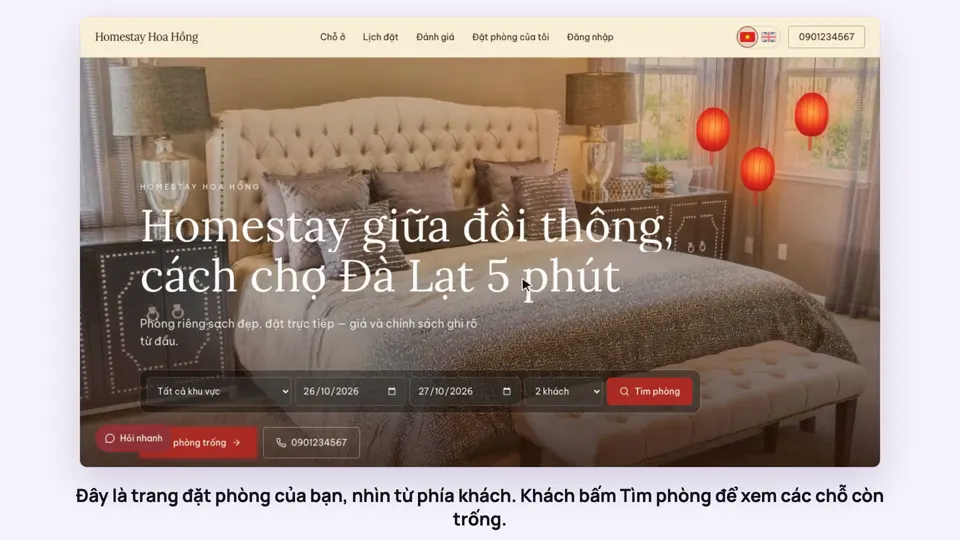 0:39A guest books on your websiteBookingsSelling
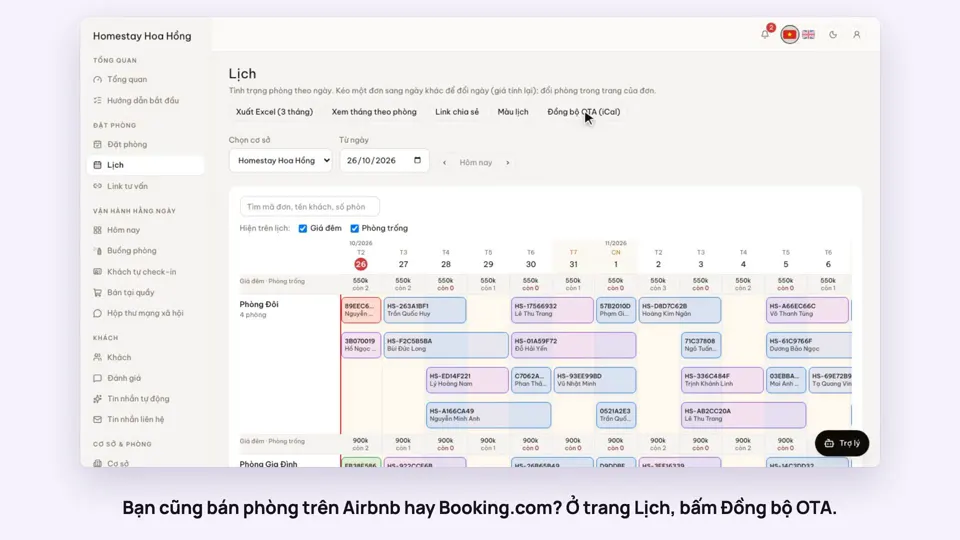 0:43Sync calendars with Airbnb, Booking.com and AgodaBookingsSelling
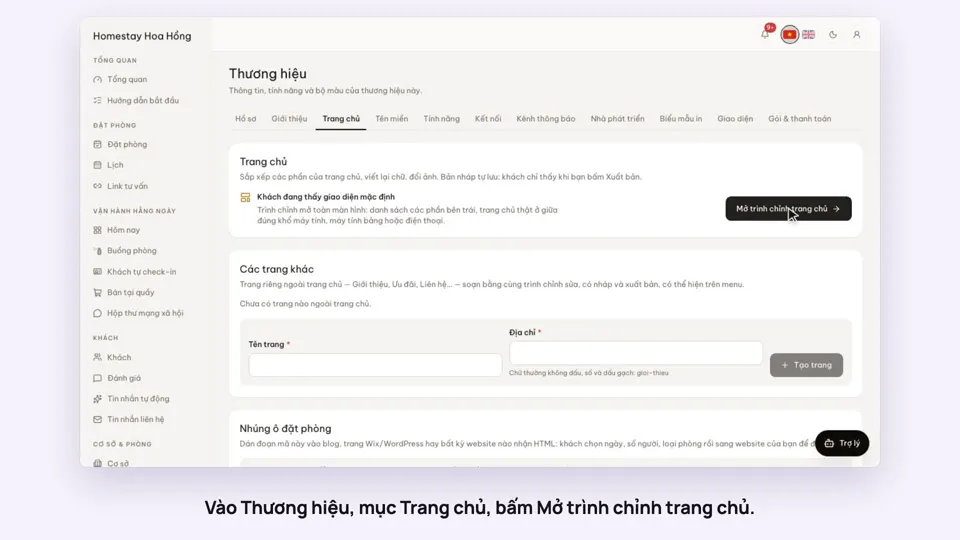 0:36Edit your home page: cover, headline, styleSelling